// ROMs
Downloading & Extracting GameCube ROMs with JDownloader
Point JDownloader at a Myrient directory, let it pull every file, and have it unzip the archives on the way down. Click any screenshot to enlarge.
01 Get the download URL
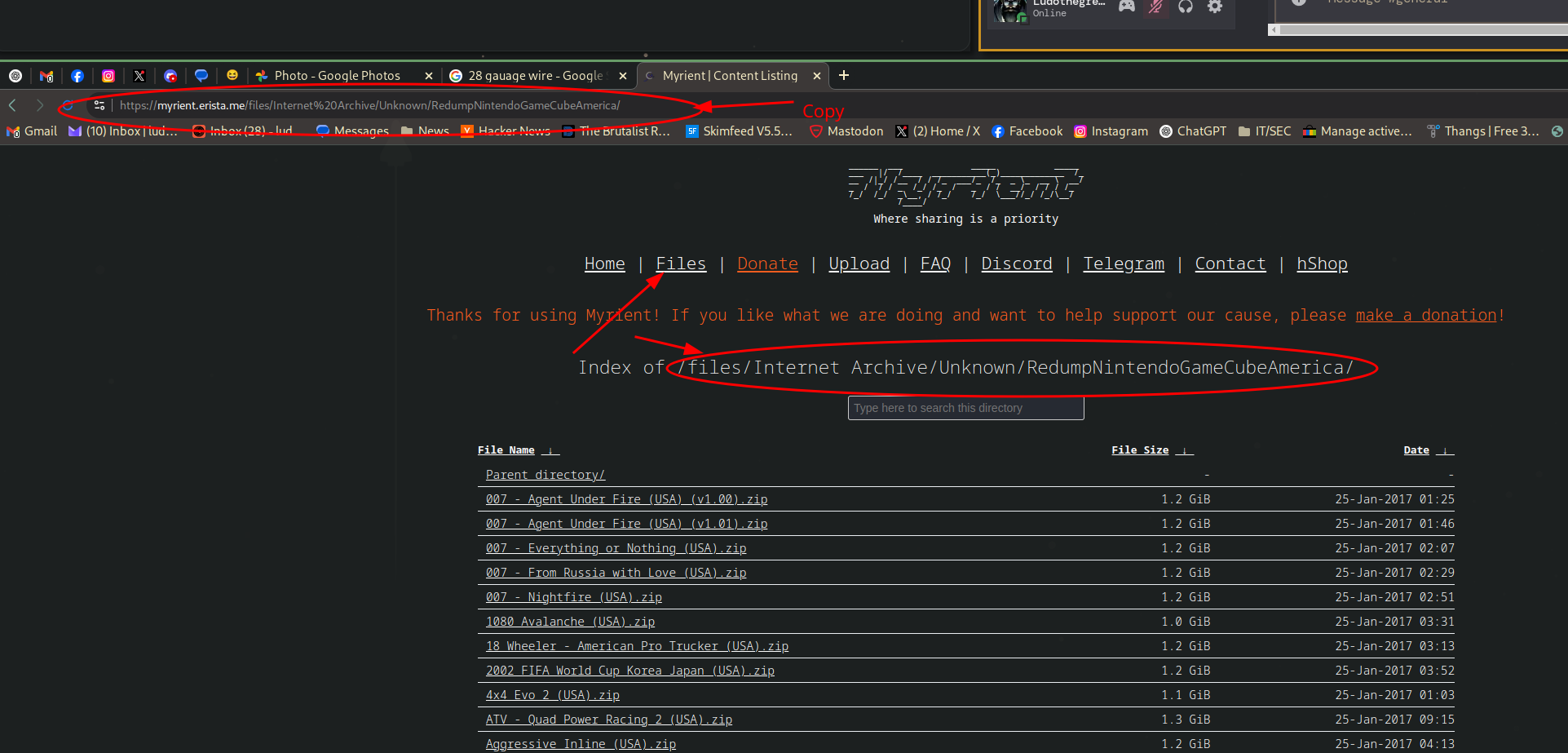
Visit the site, navigate to the page with the files you want, and copy the URL:
https://myrient.erista.me/files/Internet Archive/Unknown/RedumpNintendoGameCubeAmerica/
02 JDownloader settings overview
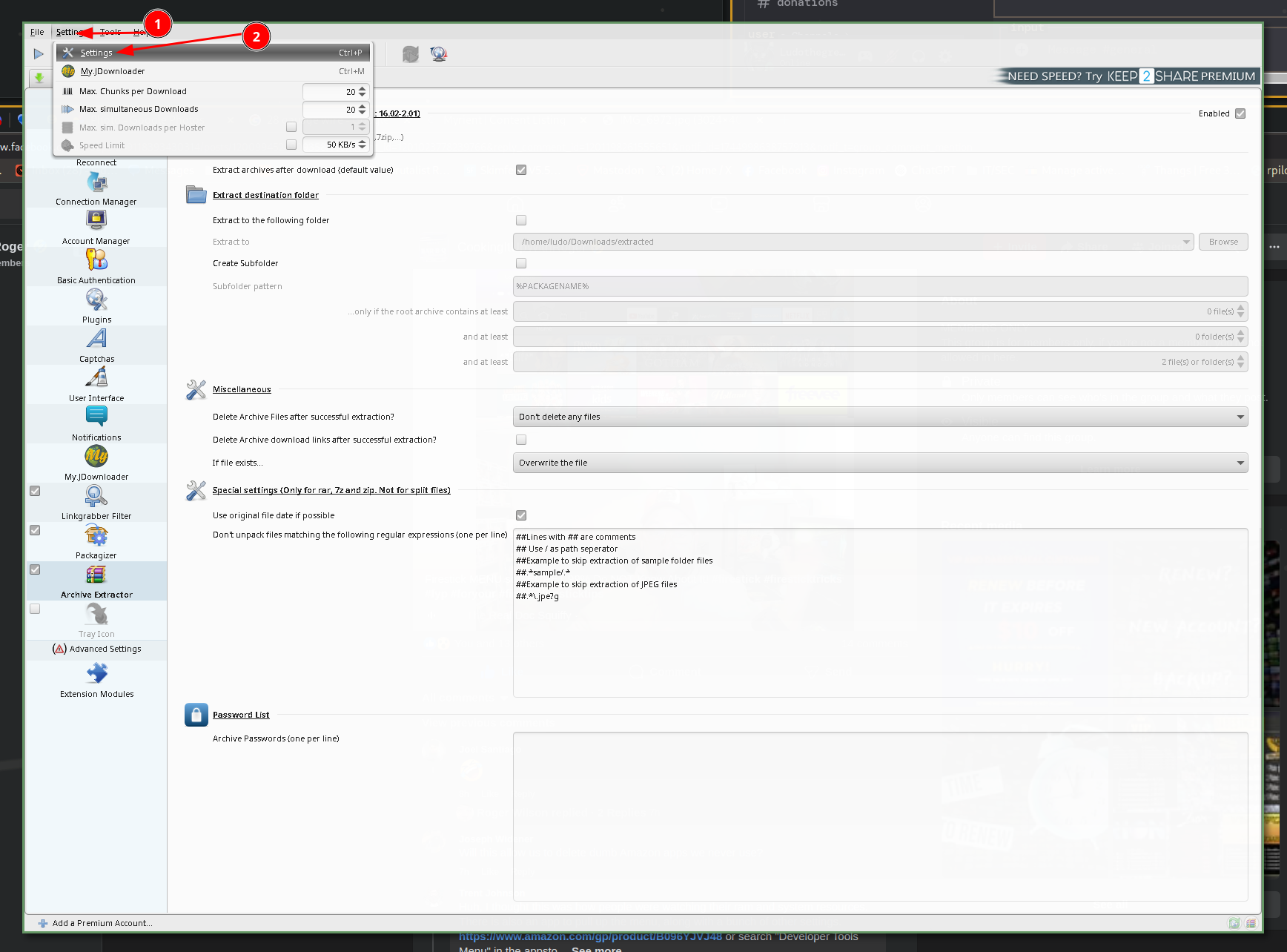
Open Settings in JDownloader and configure basic download behavior.
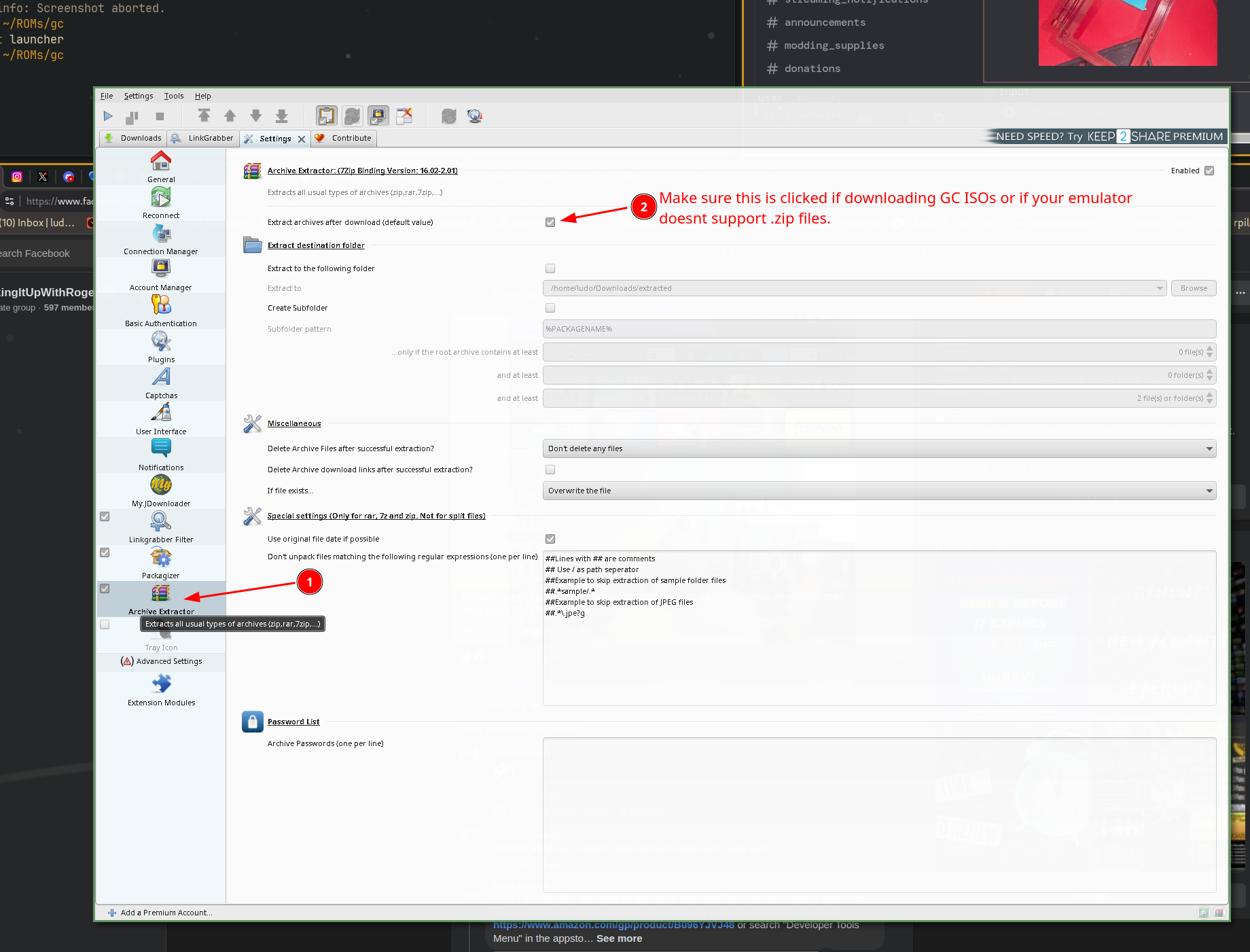
03 Enable archive extraction
Enable "Extract archives after download" if your emulator doesn't support .zip files.
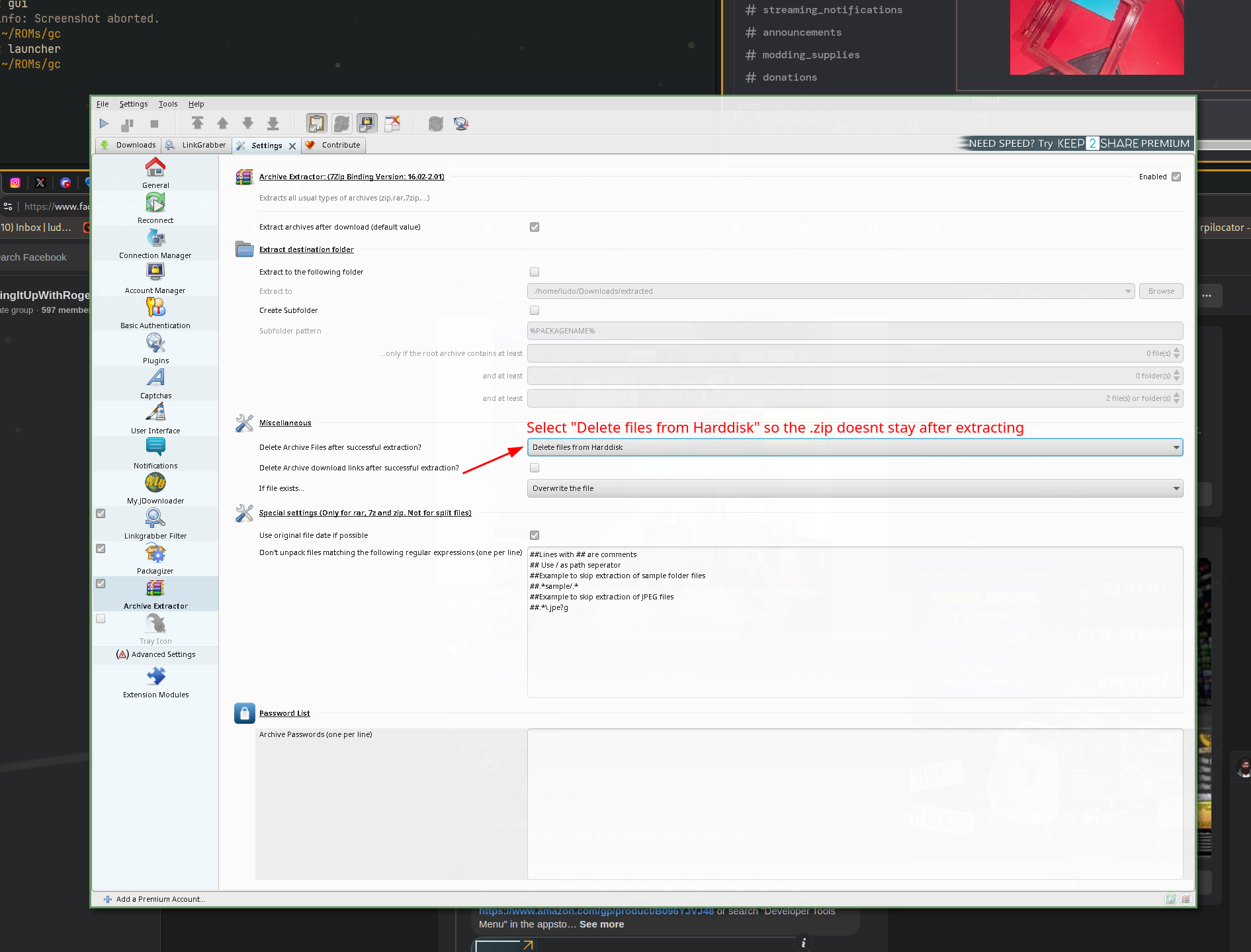
04 Delete ZIPs after extract
Select "Delete files from Harddisk" so the ZIPs are removed after extraction and your files aren't doubled up.
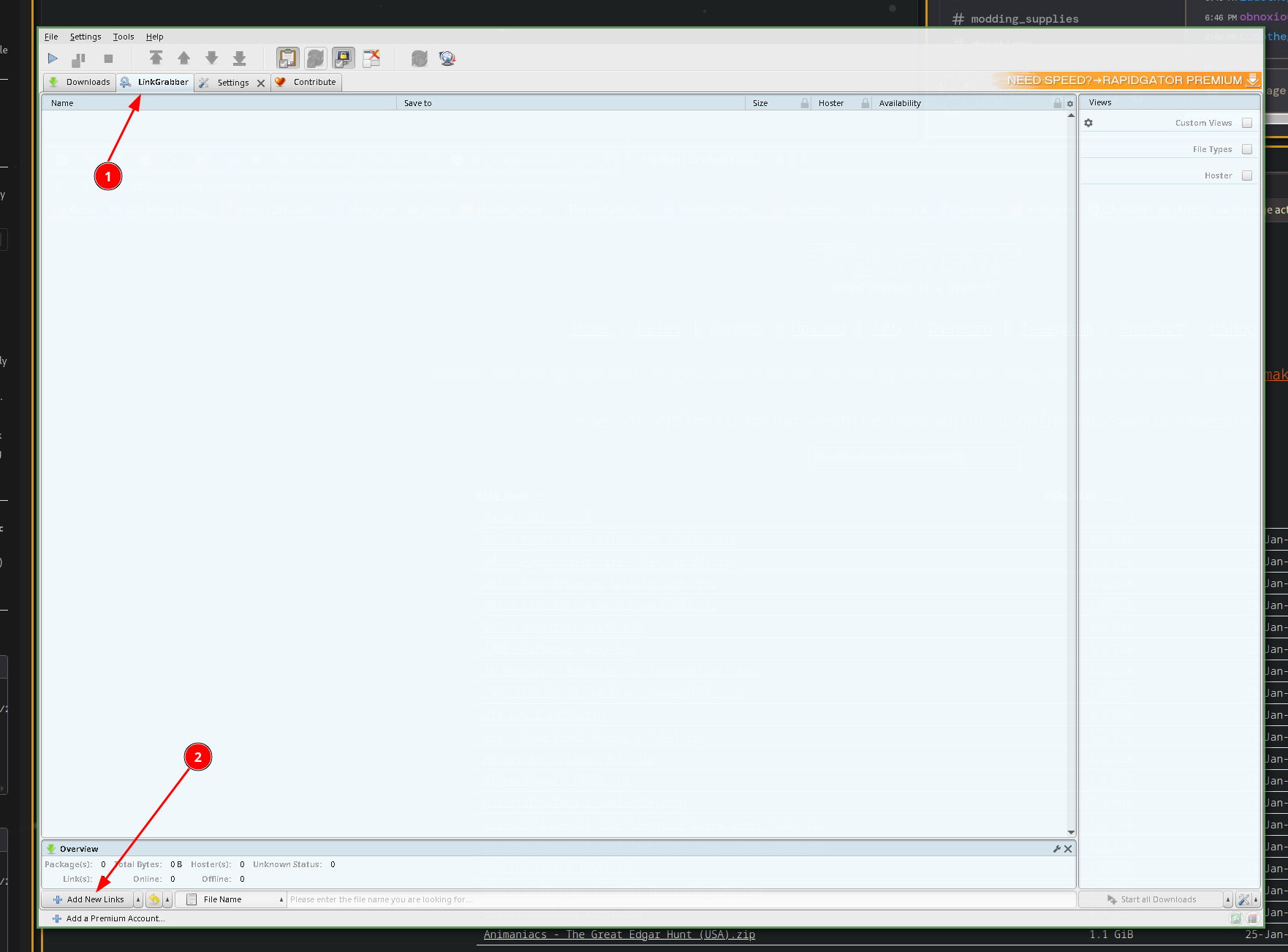
05 Open LinkGrabber and add links
Go to the LinkGrabber tab, then click Add New Links to open the link input dialog.
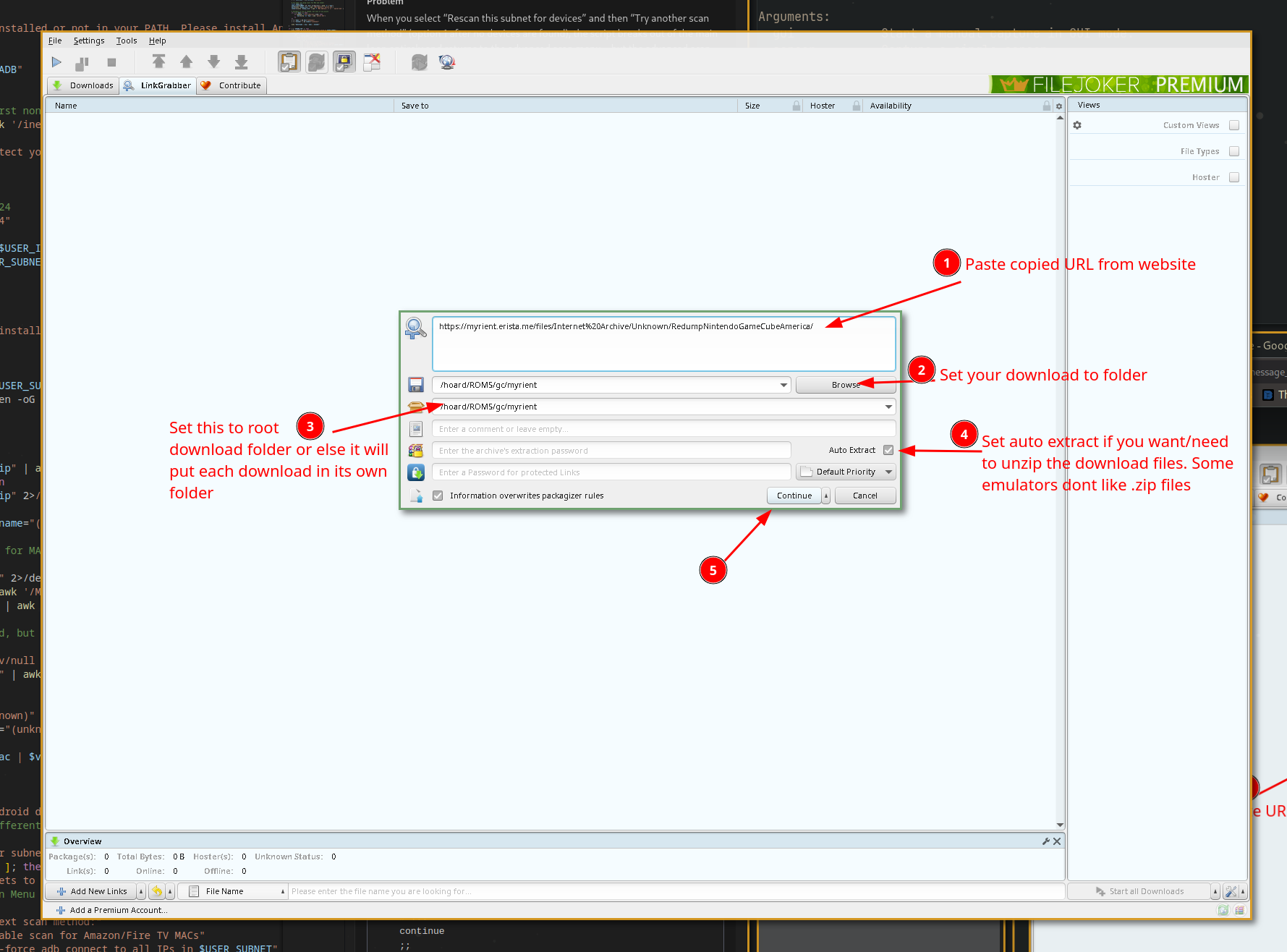
06 Add URL and configure
Paste the copied URL, set your desired download folder, and check Auto Extract if needed. Then click Continue.
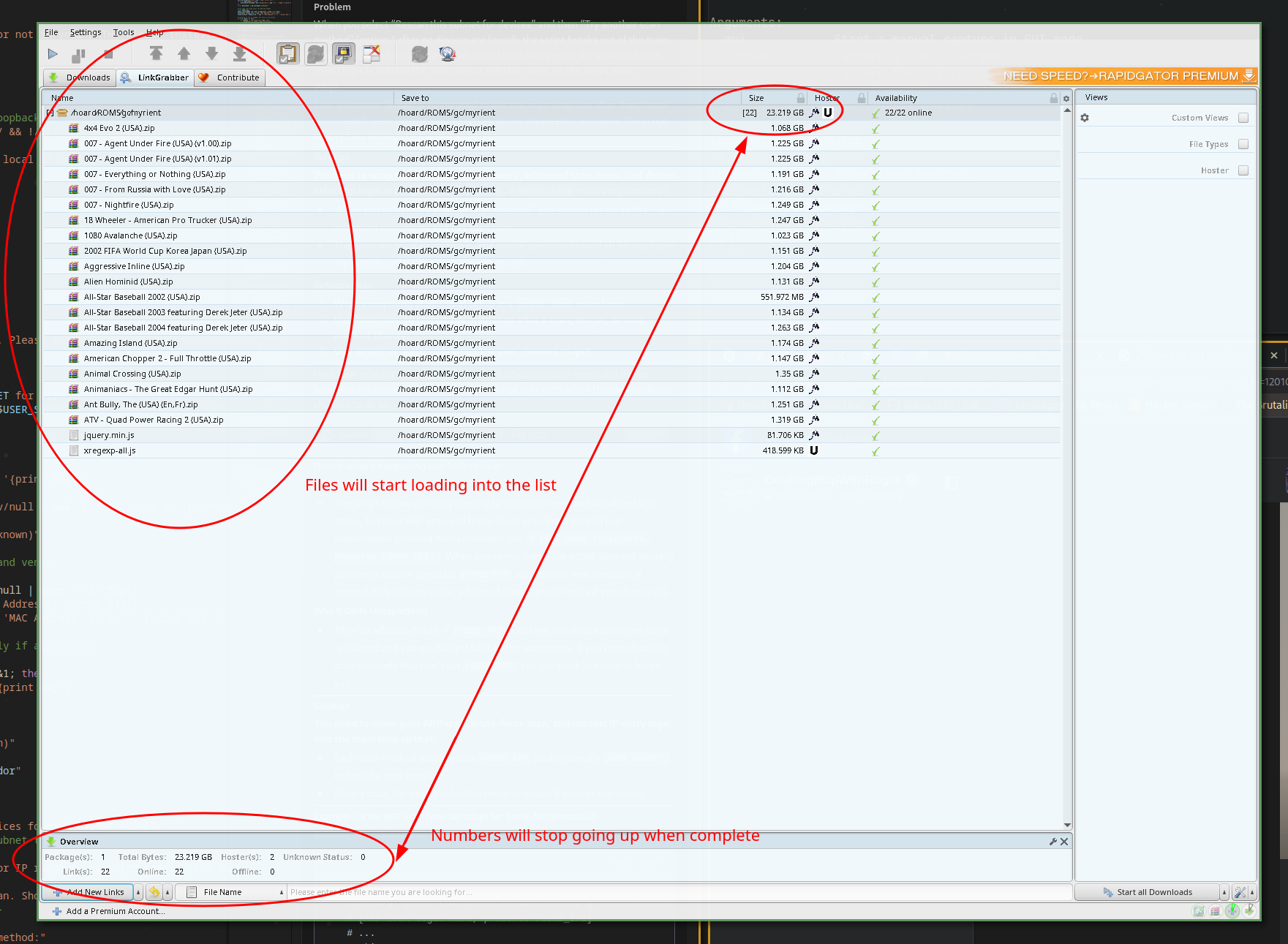
07 Wait for files to load
Files start loading in the queue after Continue is pressed. Monitor progress via the file count and total size at the bottom of the screen.
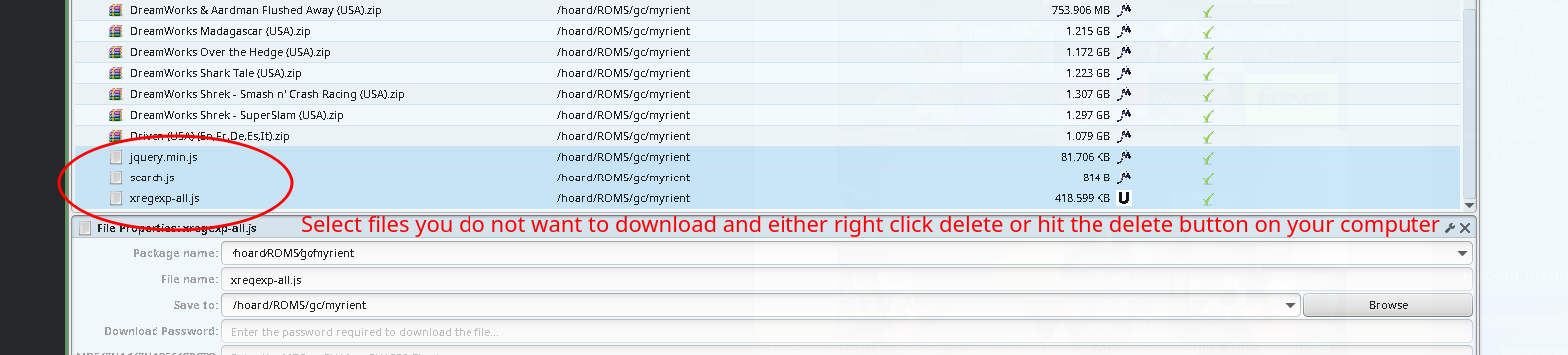
08 Remove unwanted files
If there are files you don't want, select them and delete them from the queue before starting the download.
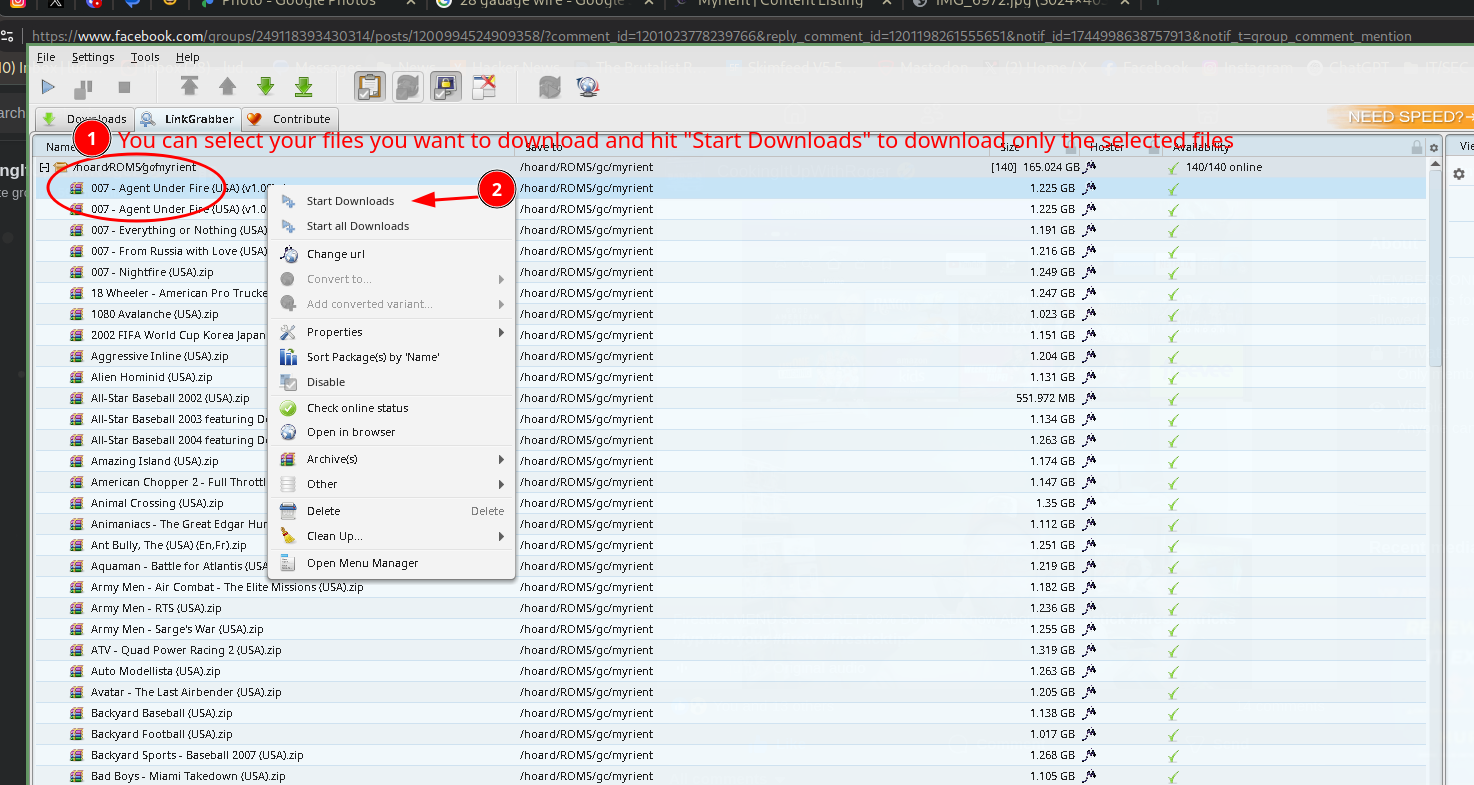
09 Select specific files to download
Select individual files in the list and right-click to choose "Start Downloads" if you don't want everything.
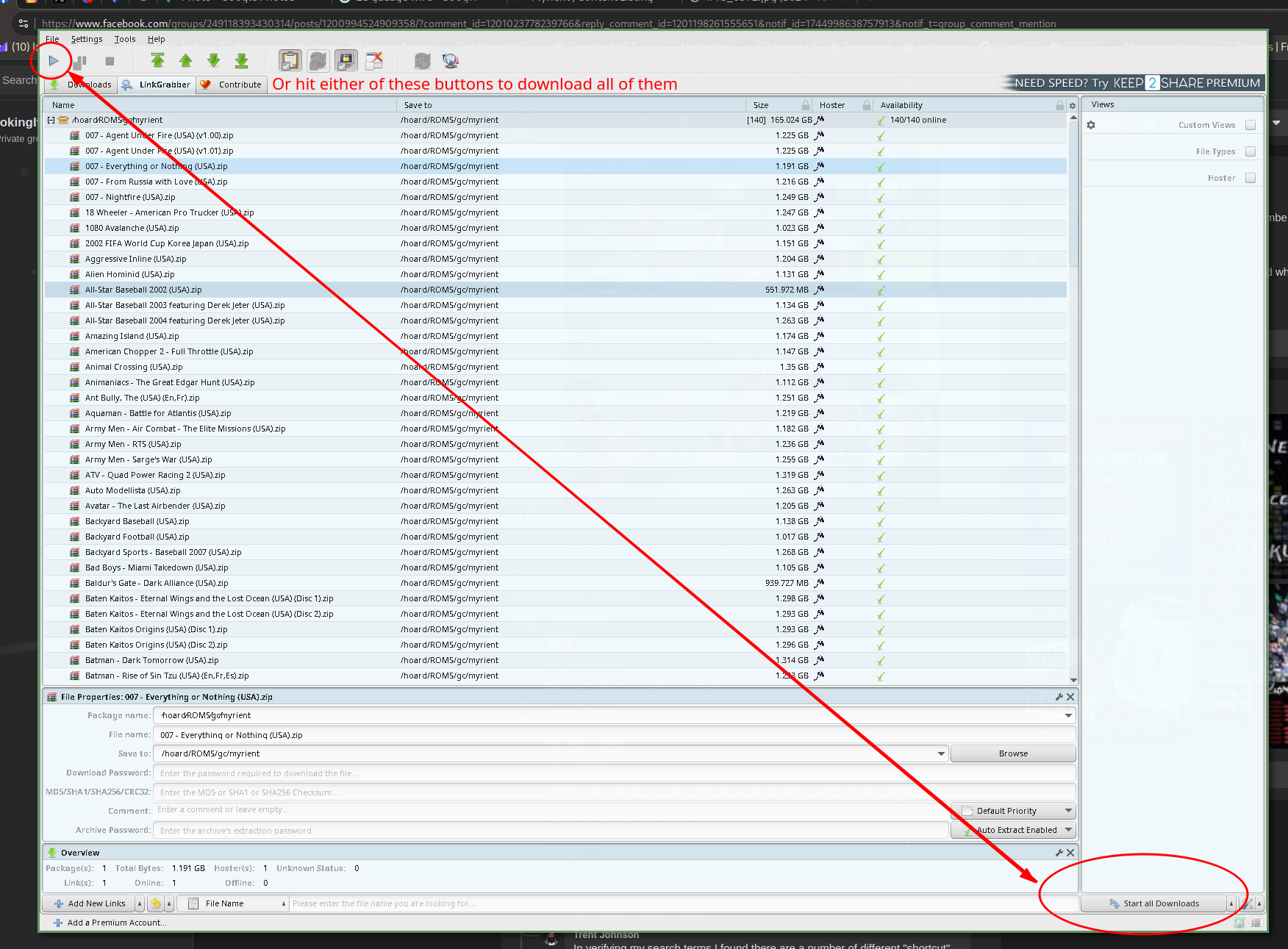
10 Start the full download queue
To download everything, click the play button or the Start all Downloads button.
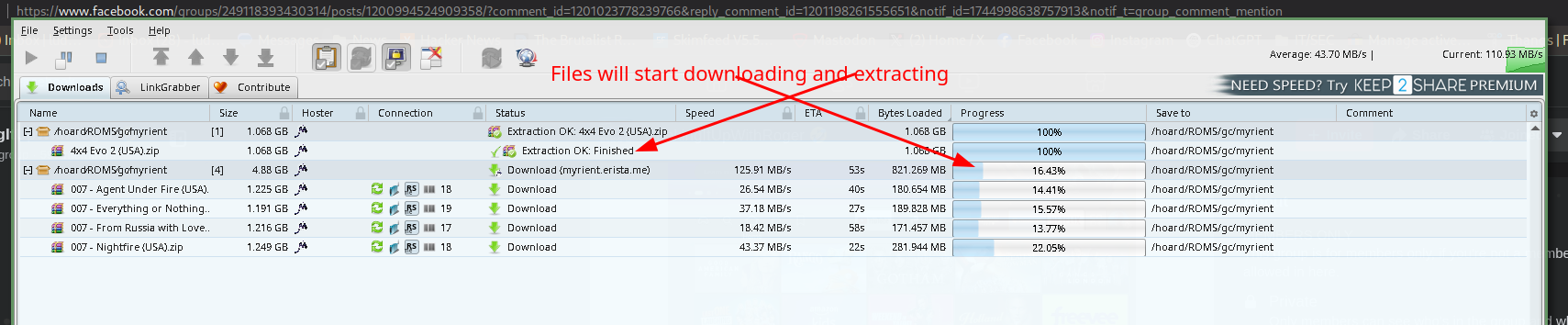
11 Monitor download and extraction
Files begin downloading and extracting. Watch the progress bars for both operations in the downloads list.
12 Verify final output
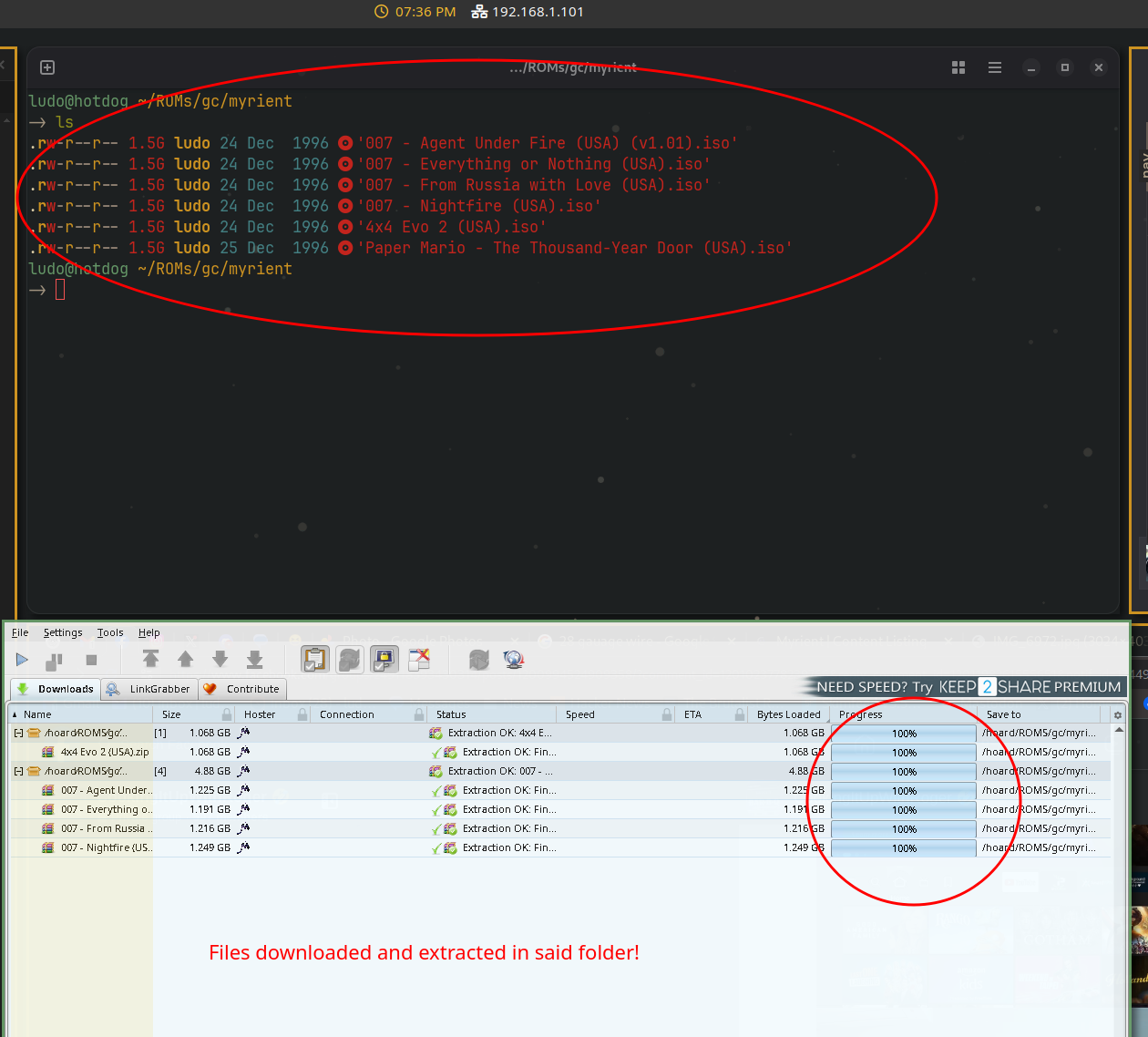
The extracted files should appear in your selected download folder, and the original ZIP archives will be deleted if configured correctly.